Import from Tradovate
Bring your Tradovate fills into Ink with the Performance report (recommended) or the Orders export.
Ink reads two kinds of Tradovate CSV:
- Performance report — recommended. Each row is a matched buy and sell. It includes positions carried over from earlier days, so a trade held overnight still comes in whole.
- Orders export. One row per order. It works too, but a file that starts or ends in the middle of a position needs the neighbouring day's file (see below).
Export the report from Tradovate as a CSV file, then import it into Ink.
Import the file
- Go to Journal → Trades and click Import — or Import a CSV if you don't have any trades yet.
- Under Into which account?, pick the account the trades belong to.
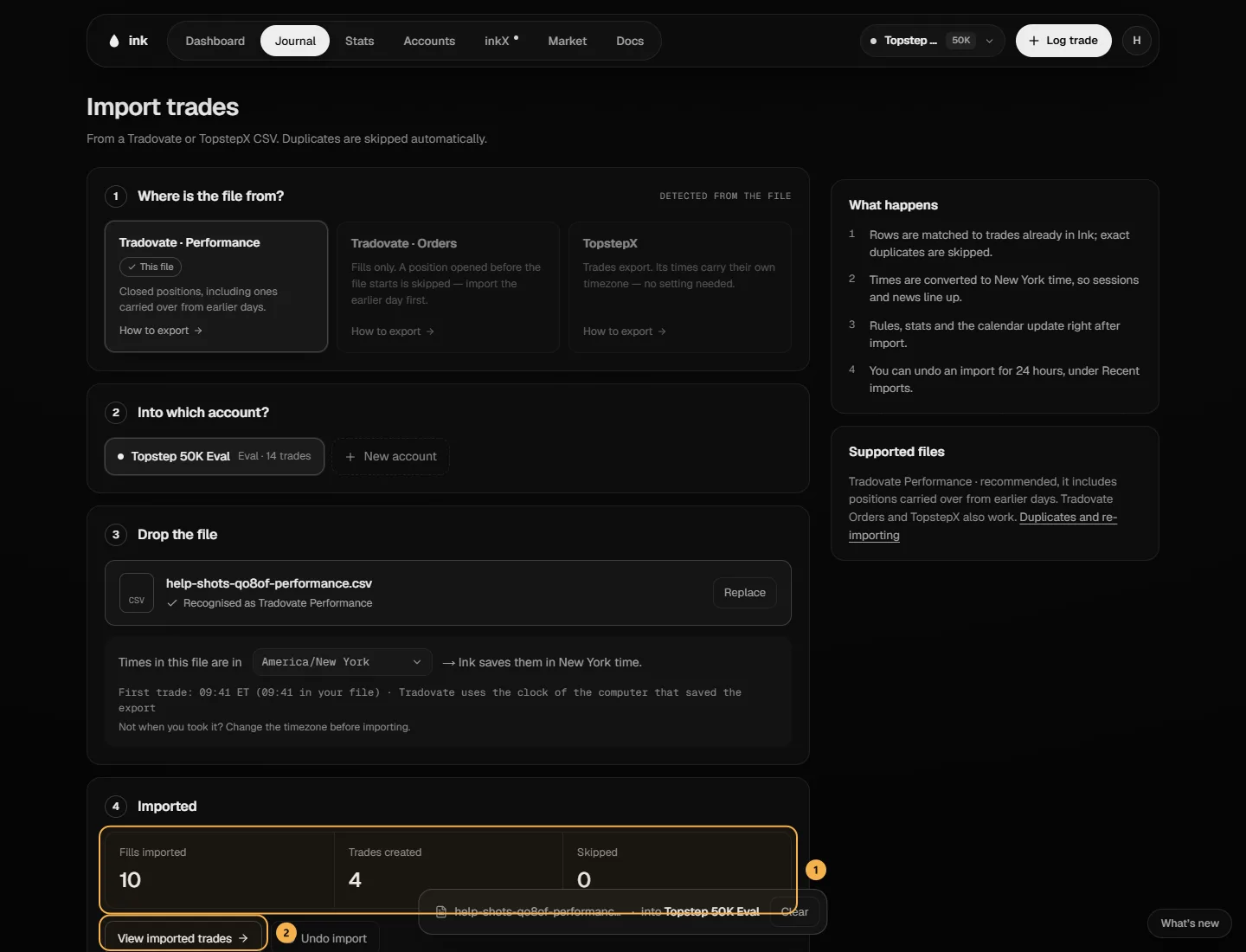
- Drop the CSV on Drop your trades CSV here, or click to browse. Ink reads what kind of file it is from its columns (Recognised as Tradovate Performance, for example) — you don't pick it.
- Check Times in this file are in. Tradovate writes times in the clock of the computer the file was exported on — choose that time zone. Ink shows when your first trade happened in New York time; if that's not when you took it, change the time zone before importing. More in Time zones.
- Click Import trades.
Check before importing
Once the file, account and time zone are set, Ink works out the whole import without saving anything and shows it under Check before importing: the new trades, the duplicates it will skip, the Dates in file, the P&L and every trade it will create. These are exactly what the import then saves — the same steps, run first.
- A Tradovate file's P&L reads P&L · before fees: Tradovate exports don't include fees or commissions. (A TopstepX file's reads Net P&L — its fees and commissions are included.)
- If something would be skipped — a position that starts before the file, or fills waiting for their exit — it says so here, before you import.
What you see after importing
- Fills imported and trades created — the fills Ink stored and the round-trip trades it built from them.
- Skipped — rows Ink didn't import, split into canceled/working orders, invalid rows and duplicates (rows you'd already imported).
- View imported trades opens the Journal on the file's dates. If everything in the file was already imported, the button reads View trades.
Ink remembers the time zone you chose for each account, so the next import into it starts there.
Ink checks Tradovate's numbers
Ink works out every trade's P&L itself, from the prices, the quantity and the contract's tick value. For a Performance report it also compares each row with Tradovate's own P&L — if any row differs by even a cent, nothing is imported and Ink names the row, so you never end up with a quietly wrong number.
Orders export: when a position crosses files
With the Orders export, a trade has to start and end inside the fills Ink can see:
- If a file starts in the middle of a position, that instrument is skipped. Import the previous day's Orders file first, or use the Performance report.
- If a position has no closing fills yet, its fills wait. Import a later file that includes the exit.
Ink tells you which instrument and day each message is about.
On the Free plan
Free imports every trade in the file, the same as Pro — there is no trade limit. Free imports into your one active account.