Install Ink on your phone
Add Ink to your home screen so it opens full screen like an app — then sign in inside it.
Ink isn't in the App Store or Google Play — you install it from the browser. It then opens full screen from your home screen, starts on your Dashboard, and gets out of the way of your phone's notch and home bar.
iPhone and iPad
- Open inklyn.app in Safari.
- Tap the Share button, then Add to Home Screen.
- Tap Add.
Android
- Open inklyn.app in Chrome.
- Tap the ⋮ menu, then Install app (on some phones: Add to Home screen).
- Confirm.
Sign in inside the installed app
On iPhone, the installed app keeps its own sign-in, separate from Safari. Open Ink from your home screen and sign in there with Continue with Google, or your email and password and Sign in.
Need a password first? Use Forgot password? — the email link opens in Safari; set the new password there, then sign in with it in the installed app. More: Create your account and sign in.
Using Ink on your phone
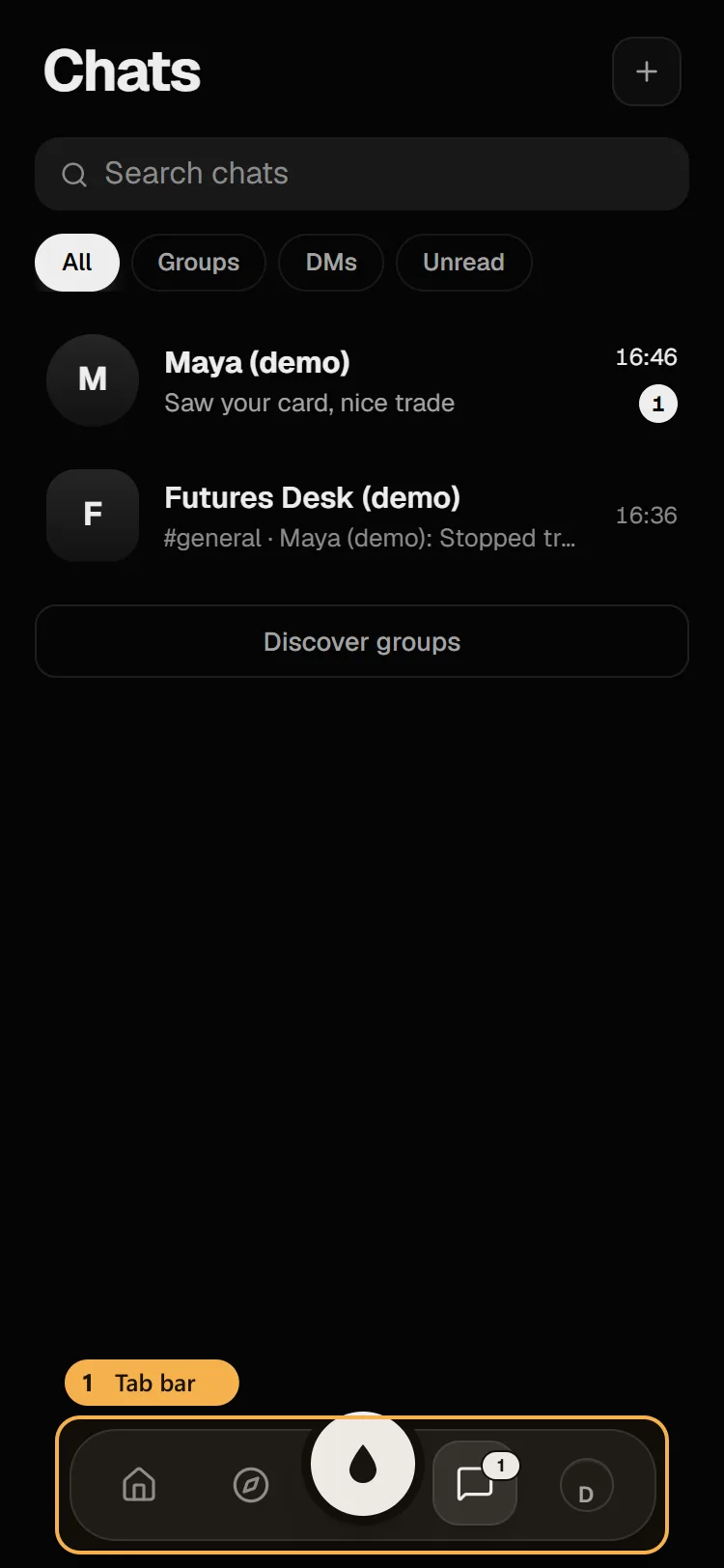
On a phone, inkX has its own bar at the bottom — For you, Groups, Messages, Alerts and your Profile — with a + above it to post. Tap inkX at the top of the feed to get back to your journal.
Ink needs an internet connection; nothing is saved on your phone for offline use.